What your officer sees: one shift, start to finish
The Field App is the only tool a guard needs on post. No account to create, no forms to learn, nothing that stops working in a parking deck. Here is a shift as the officer experiences it — and what you see on the other end of each step.
Free 30-day trial with no card required. $7/guard per month, everything included.
1. Sign in with a code, not a password
You create the account in the back office; the officer enters their work email and gets a one-time code. No passwords to reset at 11 p.m. Disable a user who leaves and the phone is signed out within a minute; a lost phone can be signed out remotely.
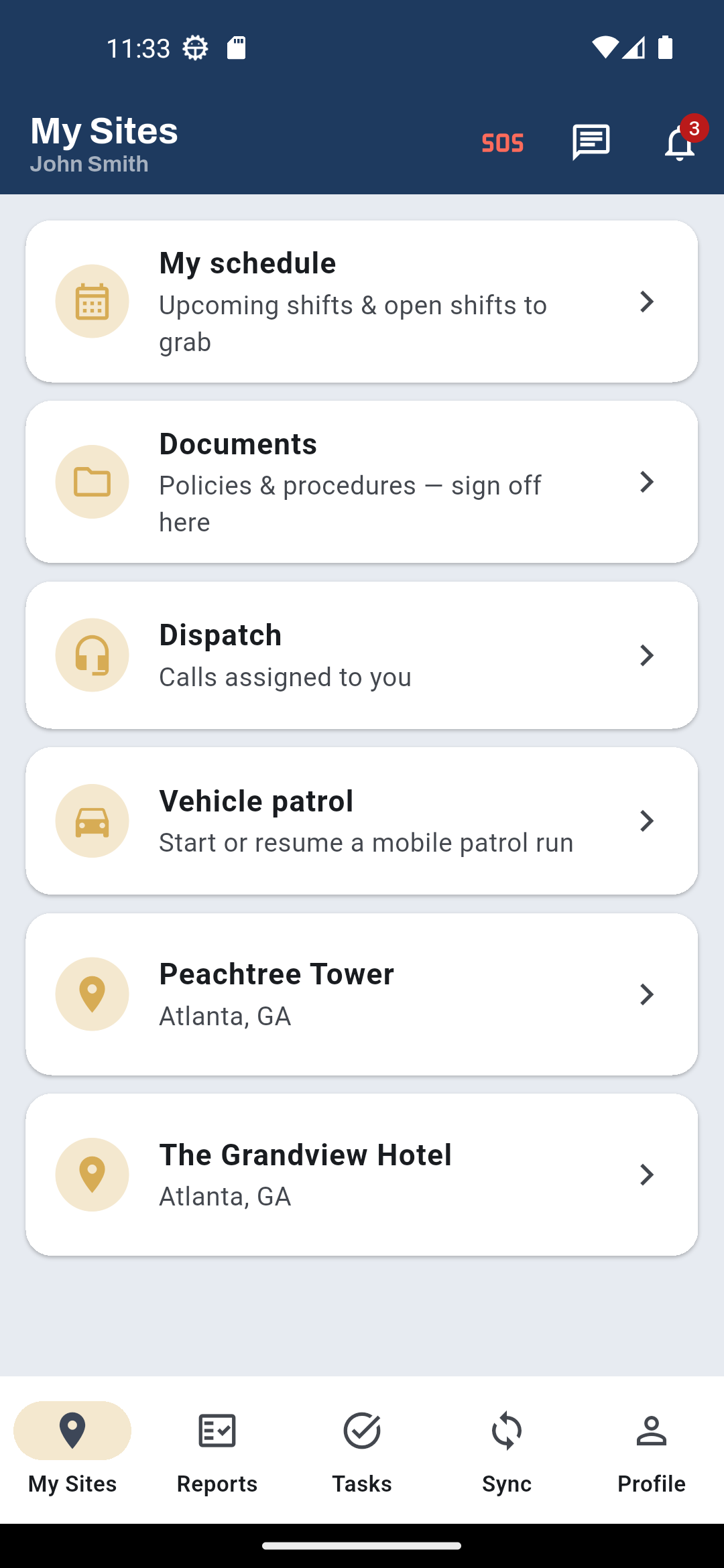
2. Clock in with proof
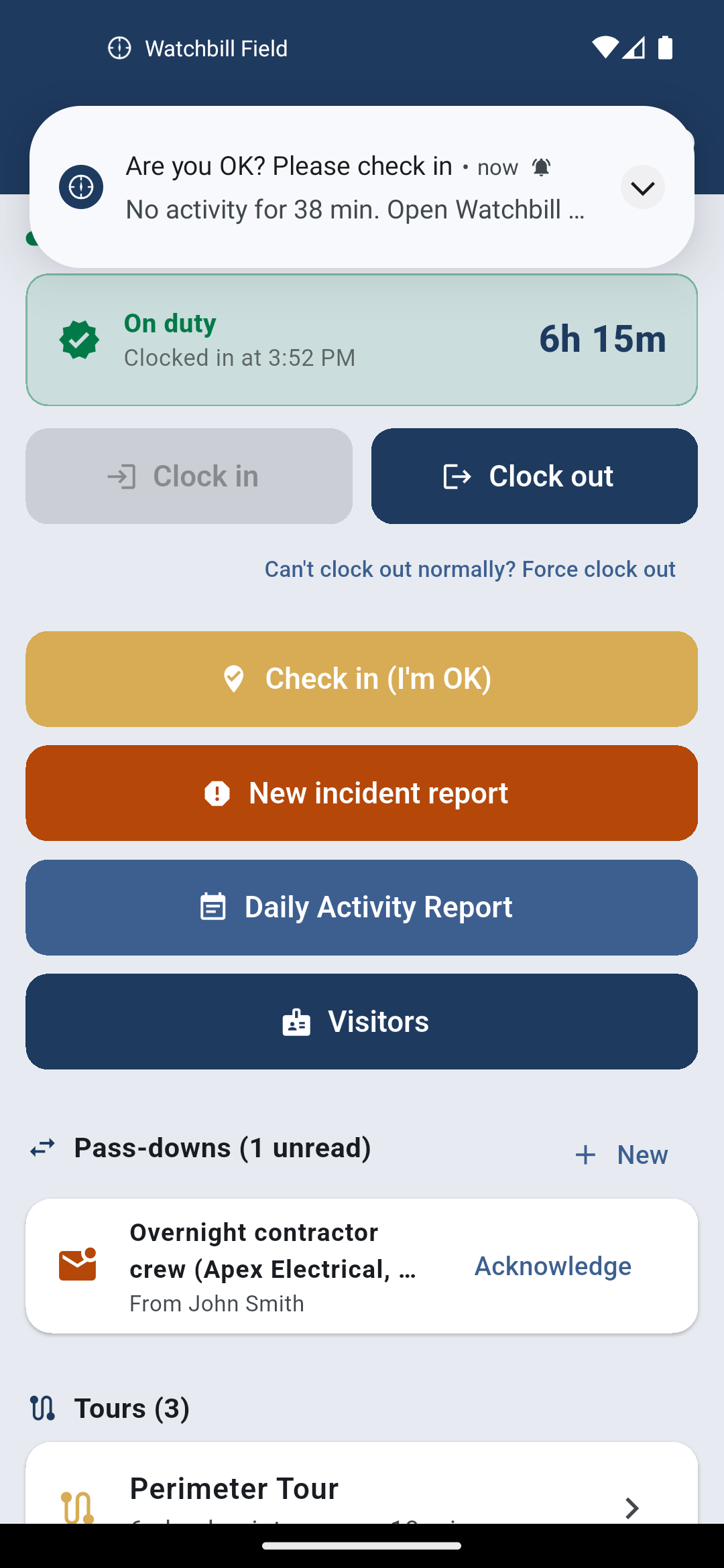
The site screen is home base. Clock-in verifies the way the site demands — inside the geofence, a QR scan, an NFC tap — and links to the scheduled shift automatically. Arriving early is fine. Arriving late, or leaving early, is recorded honestly on the shift and reported to you. Breaks stay inside the session.
From clock-in to clock-out the app records location, and it says so on screen. Off shift, nothing is recorded. The app keeps reporting with the screen off and the phone in a pocket, and sends a "still here" signal every few minutes, so standing at a post all night looks exactly like what it is.
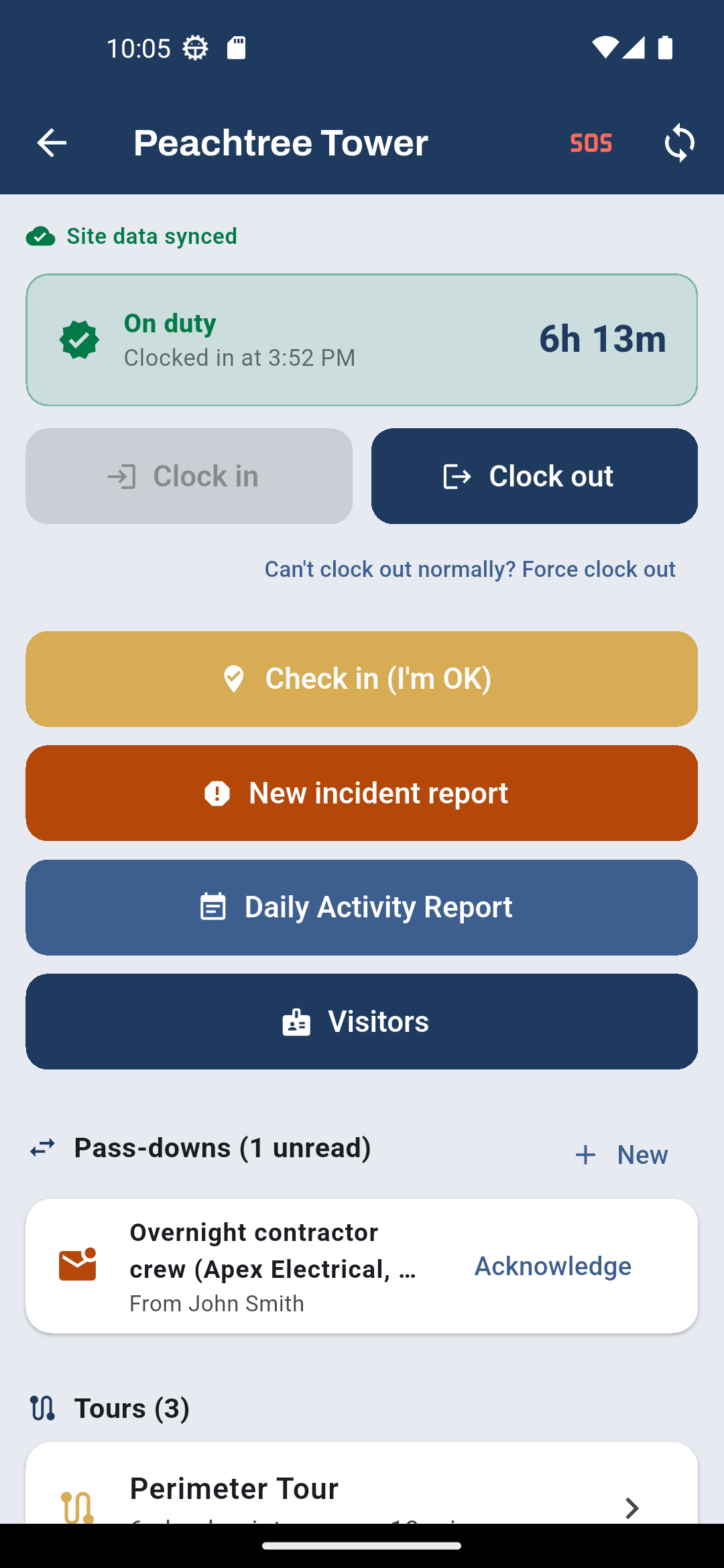
3. Run what's due
Scheduled tours and checklists appear in a "due" list and are claimed by whoever starts them. Tours walk checkpoint by checkpoint — a map shows the zone and the officer's live position, green inside, amber with distance outside — and photo-required stops open the camera. Leave mid-tour for a dispatch call and come back: it resumes exactly where it stopped. Every checklist tick is saved and GPS-stamped the moment it's tapped.
Before a risky task — a dark stairwell, a confrontation, a roof — the officer can start watch mode: a countdown of their choosing. Clear it with "I'm OK" when done, extend it if the job runs long, or let it expire and the site's supervisors are alerted with the officer's position. On a vehicle patrol, each stop has a Navigate button that hands the address to the phone's maps app for turn-by-turn, and "From here" reorders what's left from wherever the officer actually is.
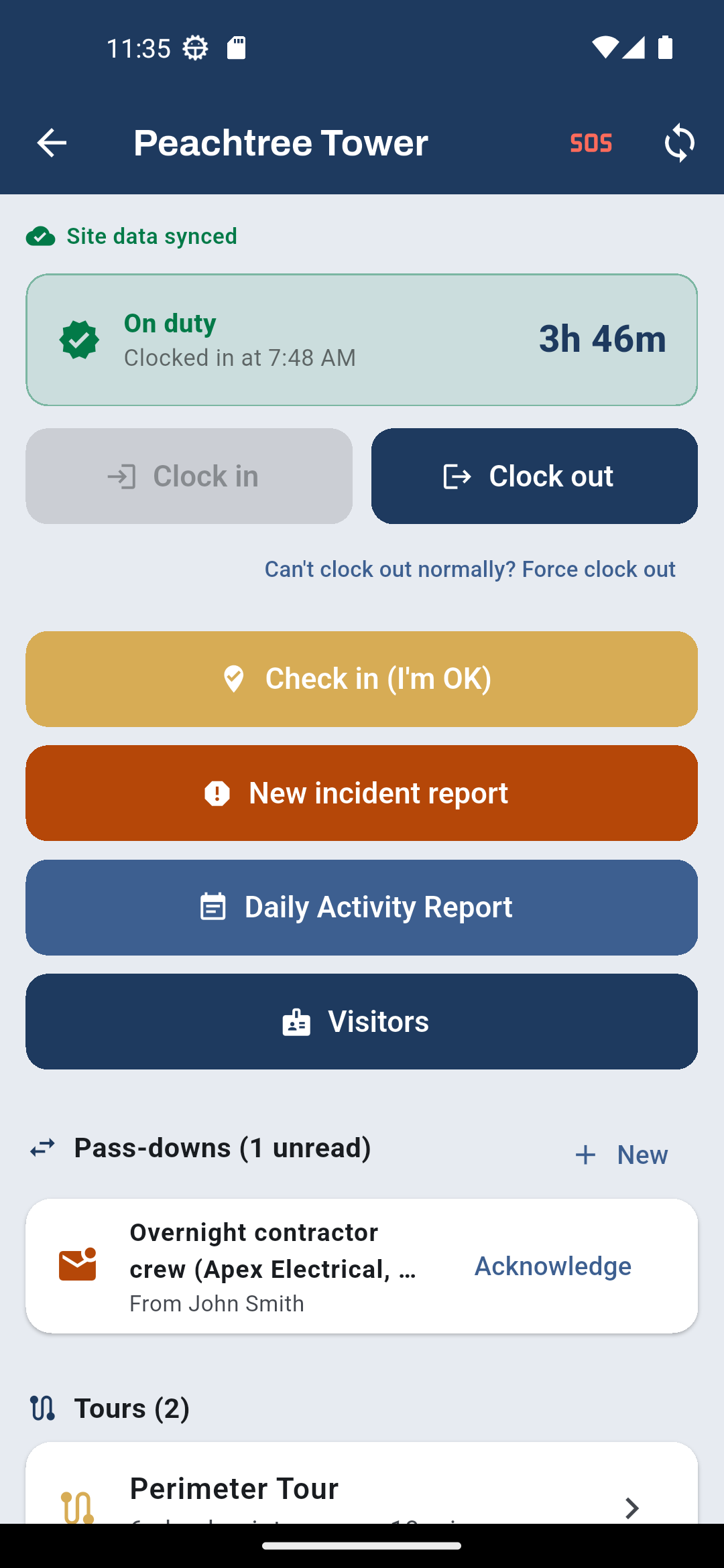
4. Report with evidence, as it happens
The daily activity report is a running log — each entry time- and GPS-stamped, photos optional. Incident reports carry category, severity, people involved and photo, video, audio and PDF attachments, and stay editable until submitted. Custom forms you designed appear here too. A rejected report comes back with your notes for fixing.
A dispatch call whose job type requires a report says so on the card. Tap Resolve, choose Write it now, and the incident report (or your custom form) opens pre-filled with the site, the call and the caller's description; submitting it closes the call with the report attached.
5. Everything else on post
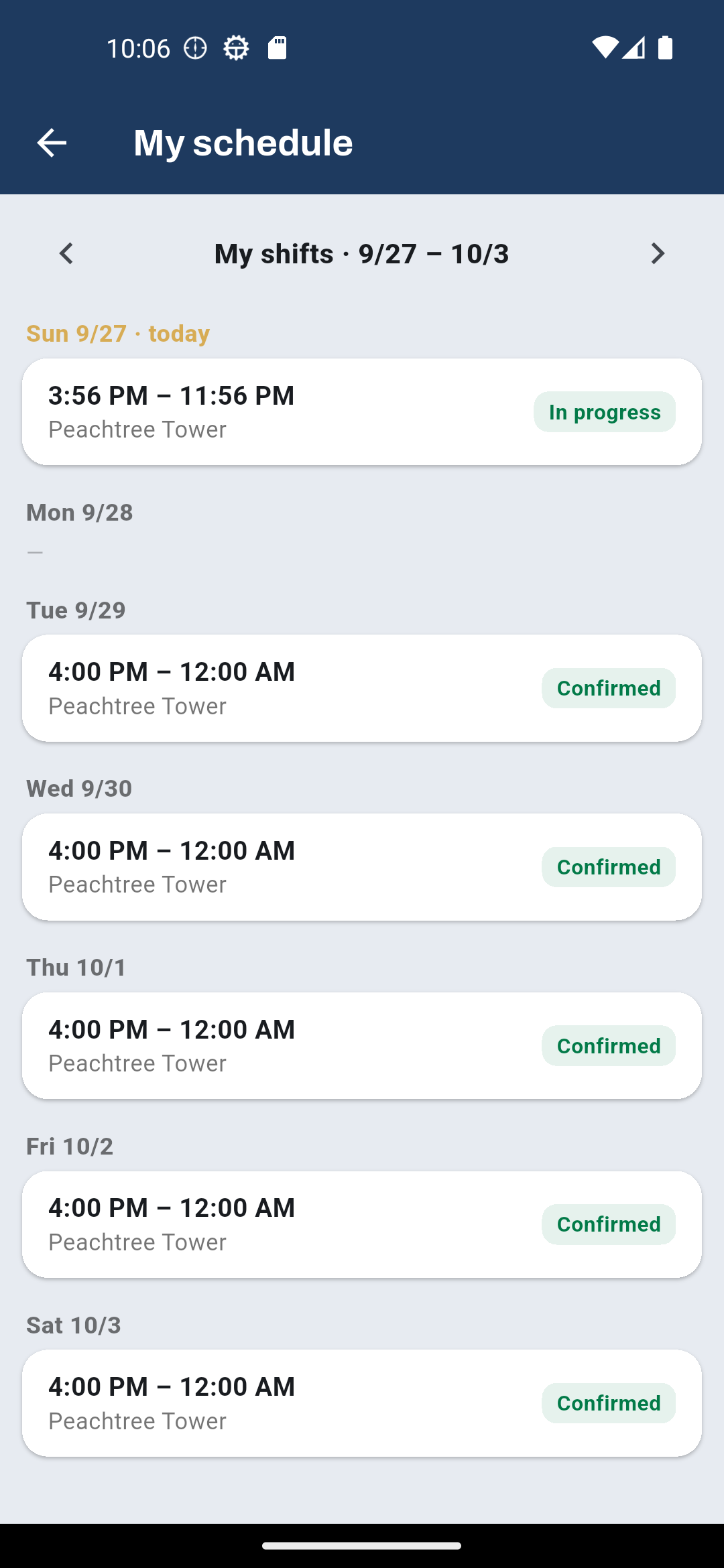
Pass-downs the next shift must acknowledge. Post orders with "read and understood". The visitor gate log with one-tap check-in and ID capture. Tasks from the office with photo proof. Vehicle patrols with odometer, route stops and per-visit reports. Messages with the office and site colleagues. Certifications with expiry warnings. And the schedule — with open shifts to bid on at the top.
6. If something goes wrong
One tap on SOS pages every office user and supervisor with the officer's name, site and live position; the officer sees when it's acknowledged. Welfare check-ins, where a site has them on, ask "Are you OK?" after a quiet stretch and escalate in five minutes if nobody answers — the safety net for the 3 a.m. lone post. And if the officer had to leave without clocking out, Force clock out takes an explanation and flags the entry for your review. Honest and visible beats a stuck clock.
7. For sensitive sites: a locked phone that keeps nothing
When your company guards a client flagged as handling protected information, the app requires a screen lock on the phone before it opens, and signing out — by the officer, by the office disabling the account, or by a session expiring — clears everything the app kept locally. The officer is asked to sync first so no report is lost. Companies without such a client never see any of it.
8. In a dead zone, it still works
Clock events, tour scans, checklist ticks, reports, visitor check-ins and pass-downs queue on the phone and sync when coverage returns. Photos and video wait in an outbox and upload when connected. The site screen itself is cached. A few things honestly need a signal — messaging, starting a patrol, registering an NFC tag — and the app says which.
Questions owners ask
What phones does it run on?
iPhone and Android, from the App Store and Google Play. NFC checkpoints need an NFC-capable phone; QR works on any camera.
How do I roll it out to twenty officers?
Add them in the back office, print the one QR code from the apps page on your onboarding sheet — it works for iPhone and Android — and they sign in with the code emailed to them.
What do guards think of the tracking?
It only runs between clock-in and clock-out, the app tells them so, and the trail is what protects a guard when a client is wrong. Lead with that.
Put the app on one officer's phone tonight
Free 30-day trial with no card required. Start with one site and add the rest when you're ready.
Start free trial Request a demo